

Host Calendar Guide
Managing your calendar effectively can help you build trust with guests, save time, and increase your earnings. Let's take a look at how to get started.
1. Calendar Structure
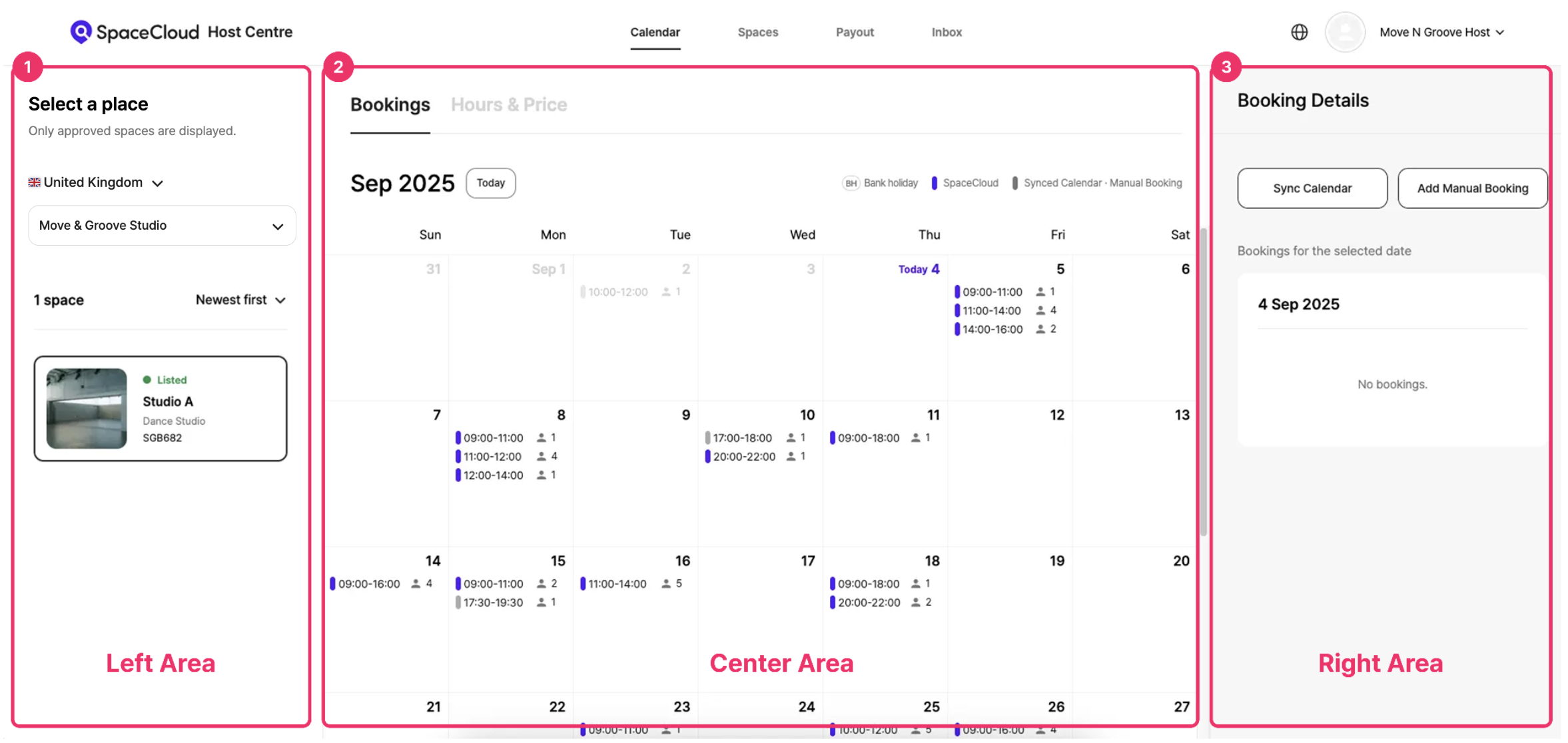
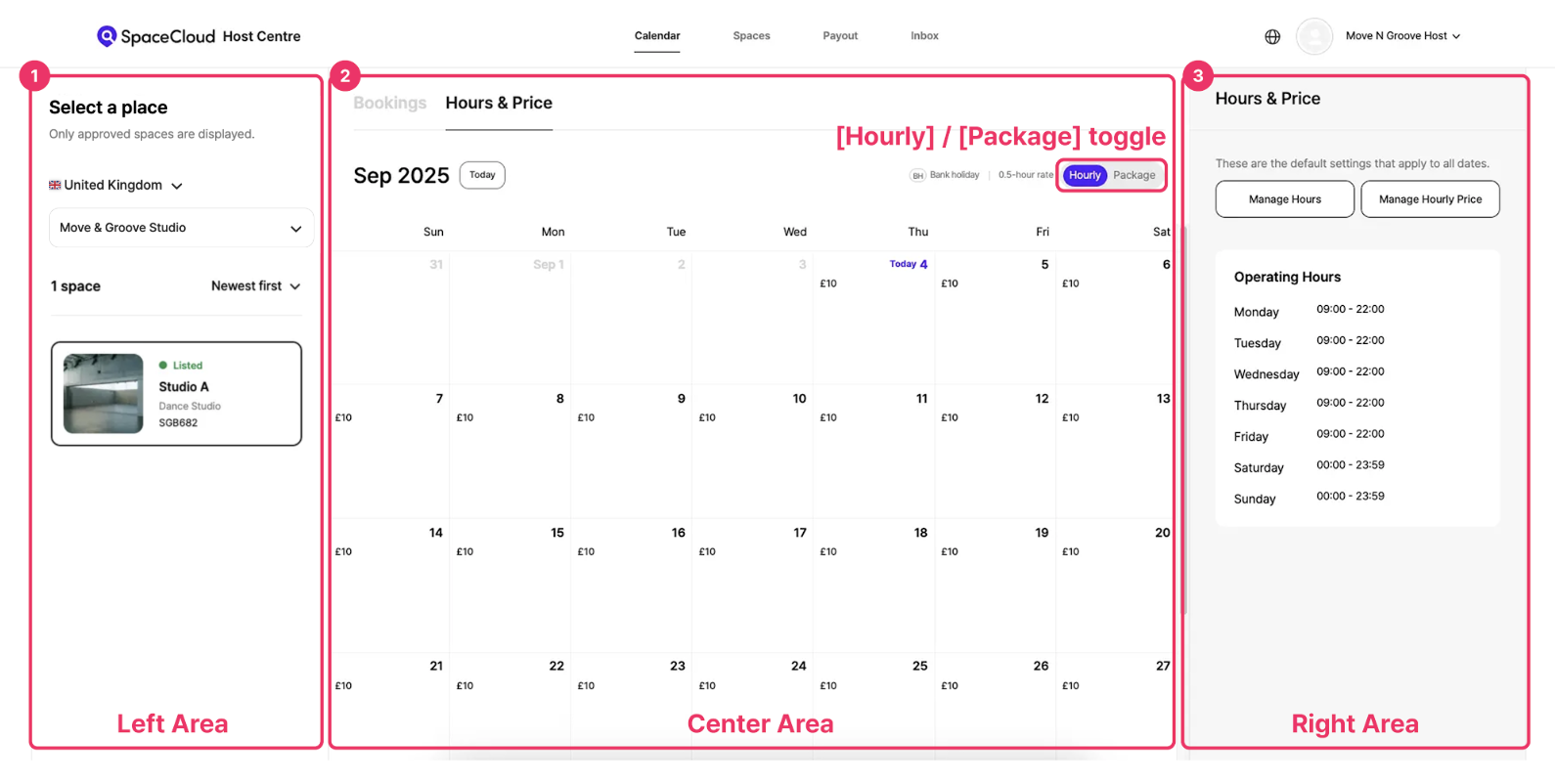
The SpaceCloud host calendar has three main areas:
1) Left Area
Select the country, place, and specific space you want to manage from this section.
2) Center Area
View the booking status and pricing for the selected space.
- Bookings Tab: See all bookings by date, including SpaceCloud reservations, synced external calendars, and manual entries.
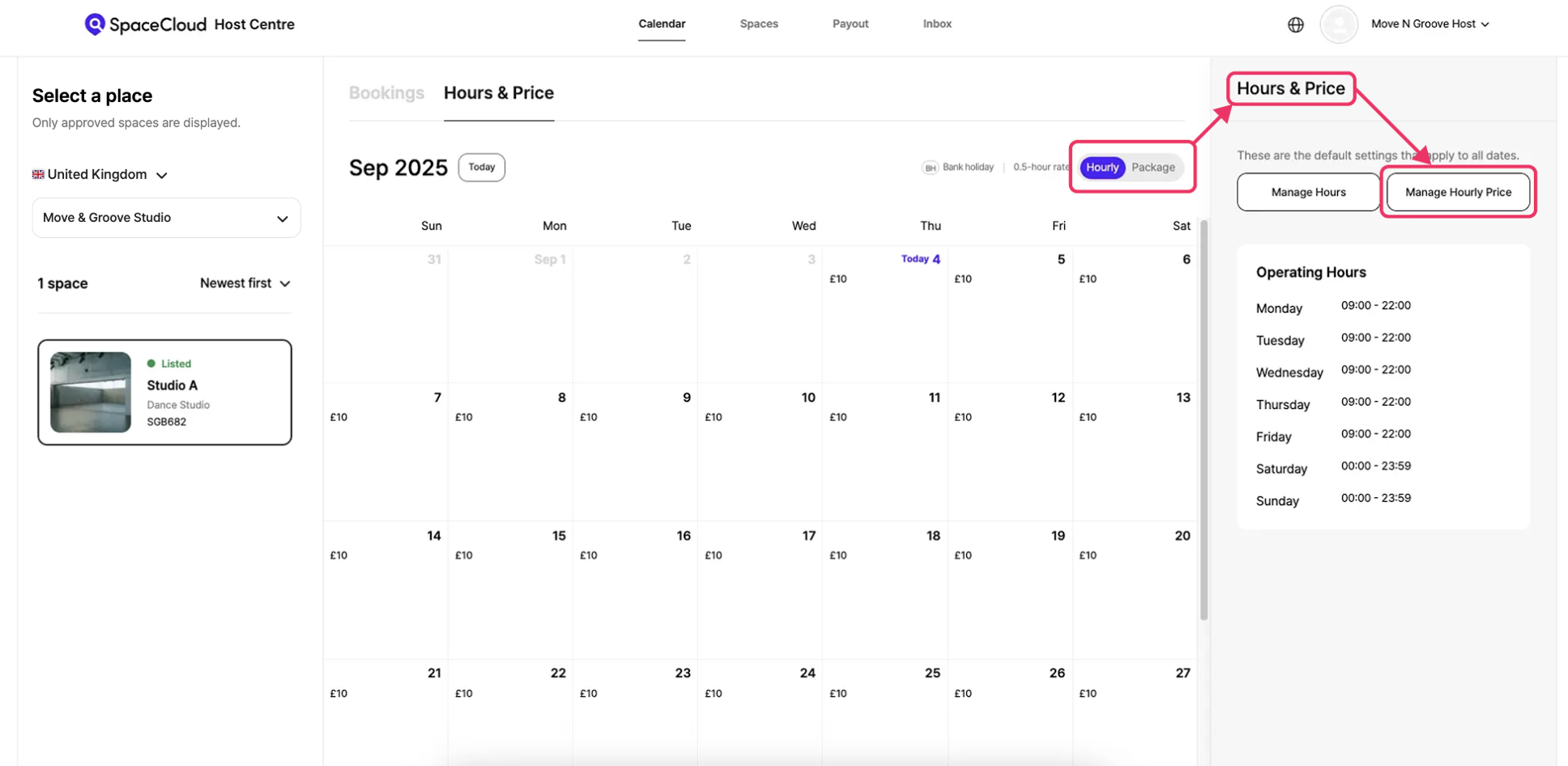
- Hours & Price Tab: View your pricing by date. Use the [Hourly] / [Package] toggle in the top right to switch between rate types
3) Right Area
This area is where you manage detailed settings for each tab.
Clicking on a specific date, booking, or price in the calendar will show you more detailed information.
- Bookings Tab: Use this to [Sync Calendar] or [Add Manual Booking].
- Hours & Price Tab: Use this to set your [Operating Hours], [Manage Hours], and [Manage Package].
2. How to Manage Bookings on the Calendar
1) Booking Colours
On the [Bookings] tab, different booking types are shown in distinct colors:
- Purple for SpaceCloud bookings.
- Grey for external or synced bookings.
For SpaceCloud bookings, you can click on an entry to approve or cancel a pending request, or to view a confirmed booking.
2) Adding Manual Bookings
If you need to block off time for personal reasons or for bookings made outside of SpaceCloud, use the [Add Manual Bookings] feature. This allows you to set a specific day or time as unavailable on your calendar.
3) Calendar Sync
If you receive bookings from multiple channels, preventing double bookings is important. The [Sync Calendar] feature allows you to sync and import bookings from external calendars, such as Google Calendar.
📌 Calendar Sync Guide (link)
3. How to Set Operating Hours and Pricing
You can manage your operating hours and pricing from the [Hours & Price] tab. The settings you chose in Step 3 when you first listed your space can also be changed here.
1) Set Operating Hours
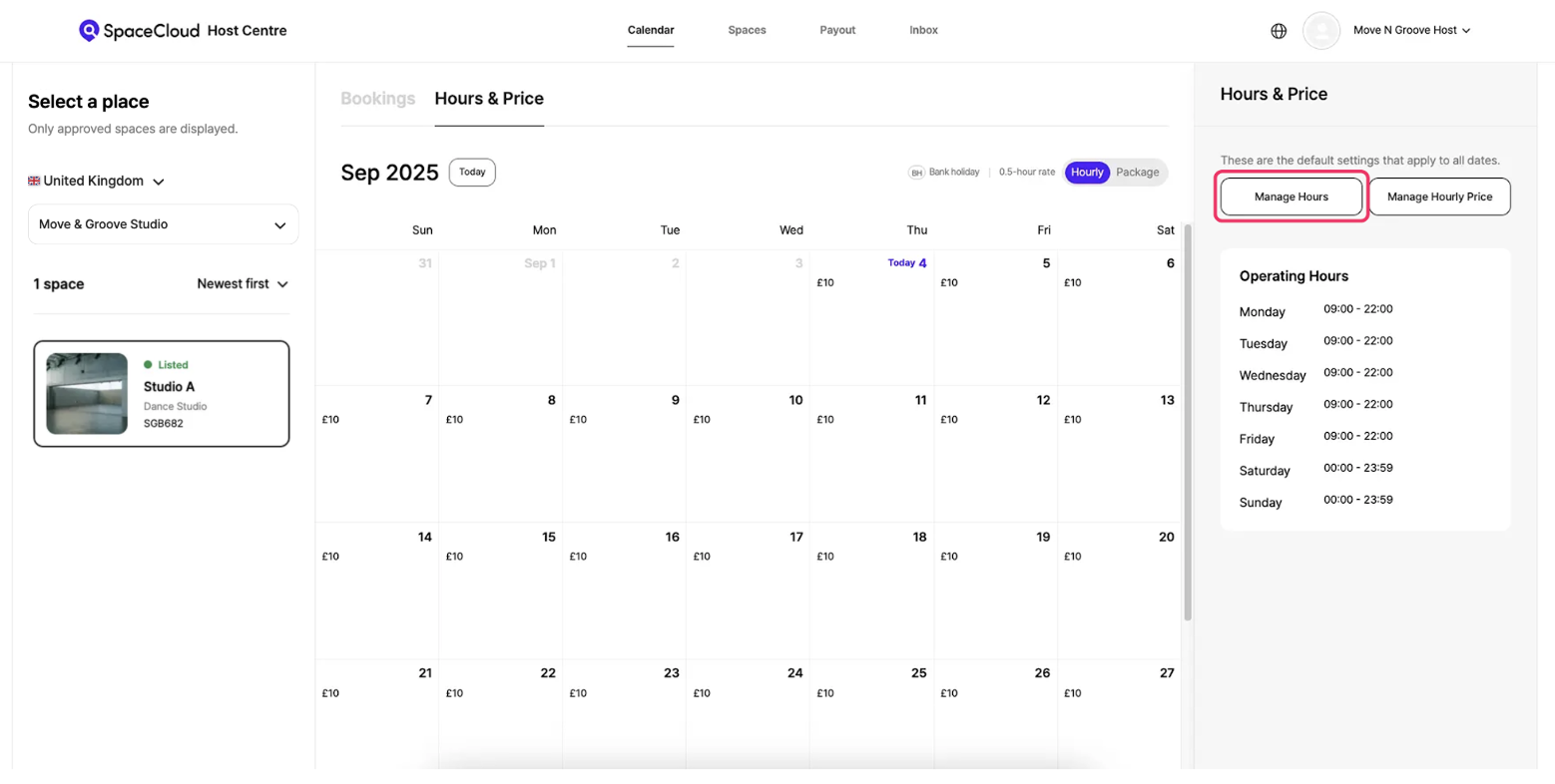
In the centre area of your calendar, select [Hourly] as the price unit. Then click the [Manage Hours] button on the right.
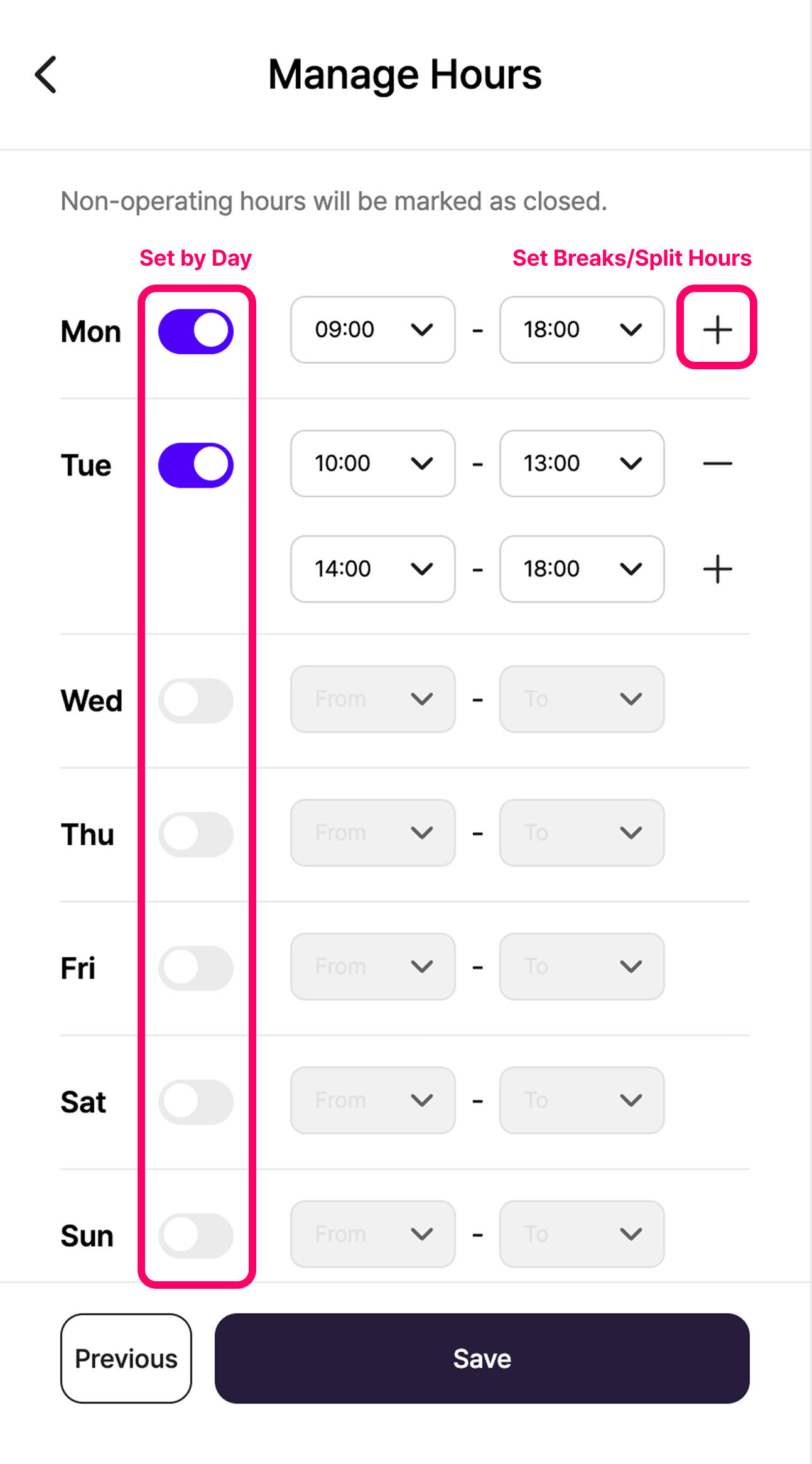
📌 How to Set Up
- Set by Day: Turn on the toggle for the days you operate and set your opening and closing hours.
- Breaks/Split Hours: If you need a break during the day, click the + button to split the hours into multiple segments.
Example:
Weekdays: 10:00 AM to 1:00 PM, 2:00 PM to 6:00 PM
Weekends: Closed
2) Setting Up Hourly Prices
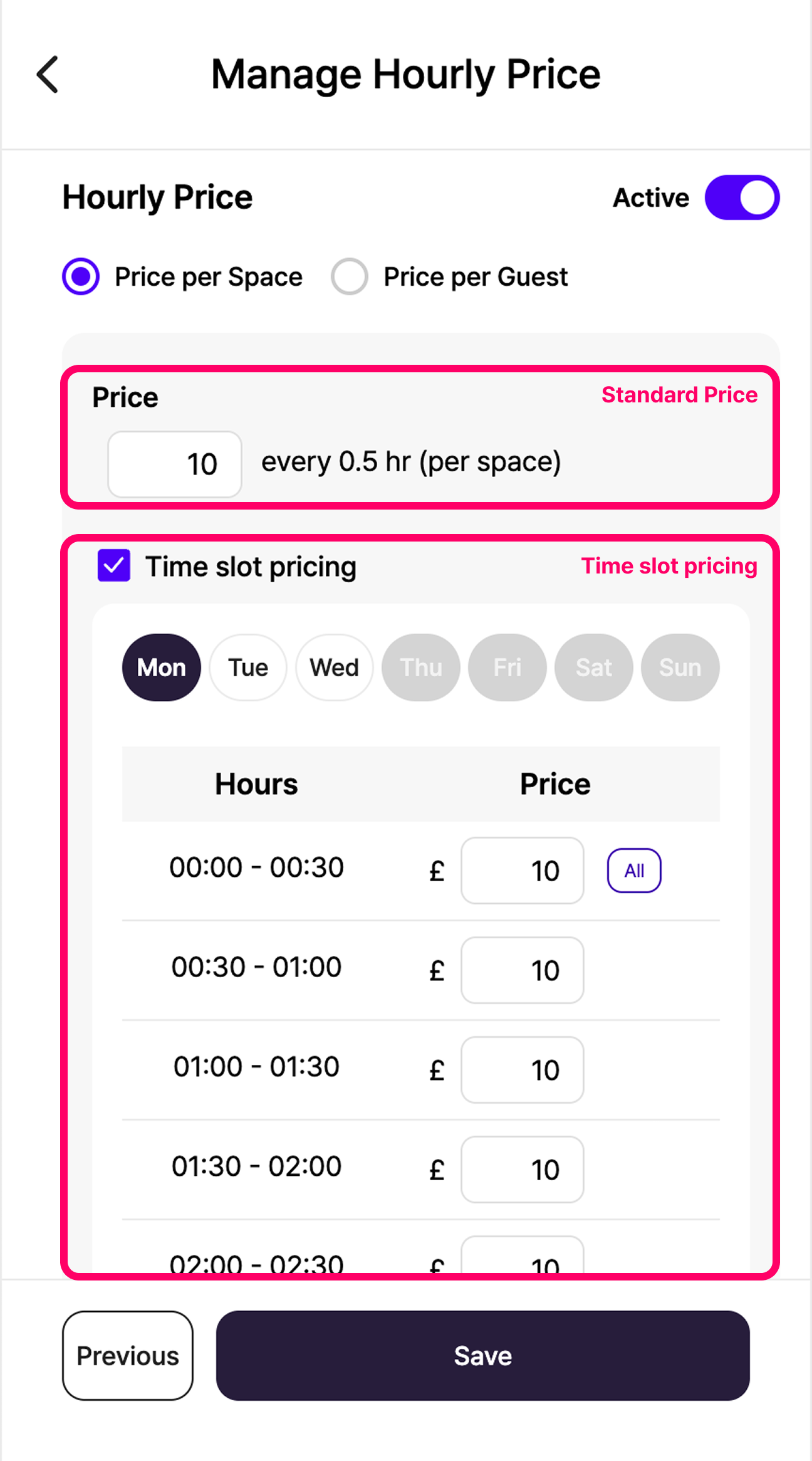
When you set an hourly rate, guests can book your space in 30-minute increments.
In the center of the calendar, select [Hourly] as the price unit. Then click [Manage Hourly Price] on the right.
📌 How to Set Up
- Standard Price: Set a representative price based on a 30-minute period.
- Time slot pricing: If your prices vary by day or time, check the box to enter custom rates.
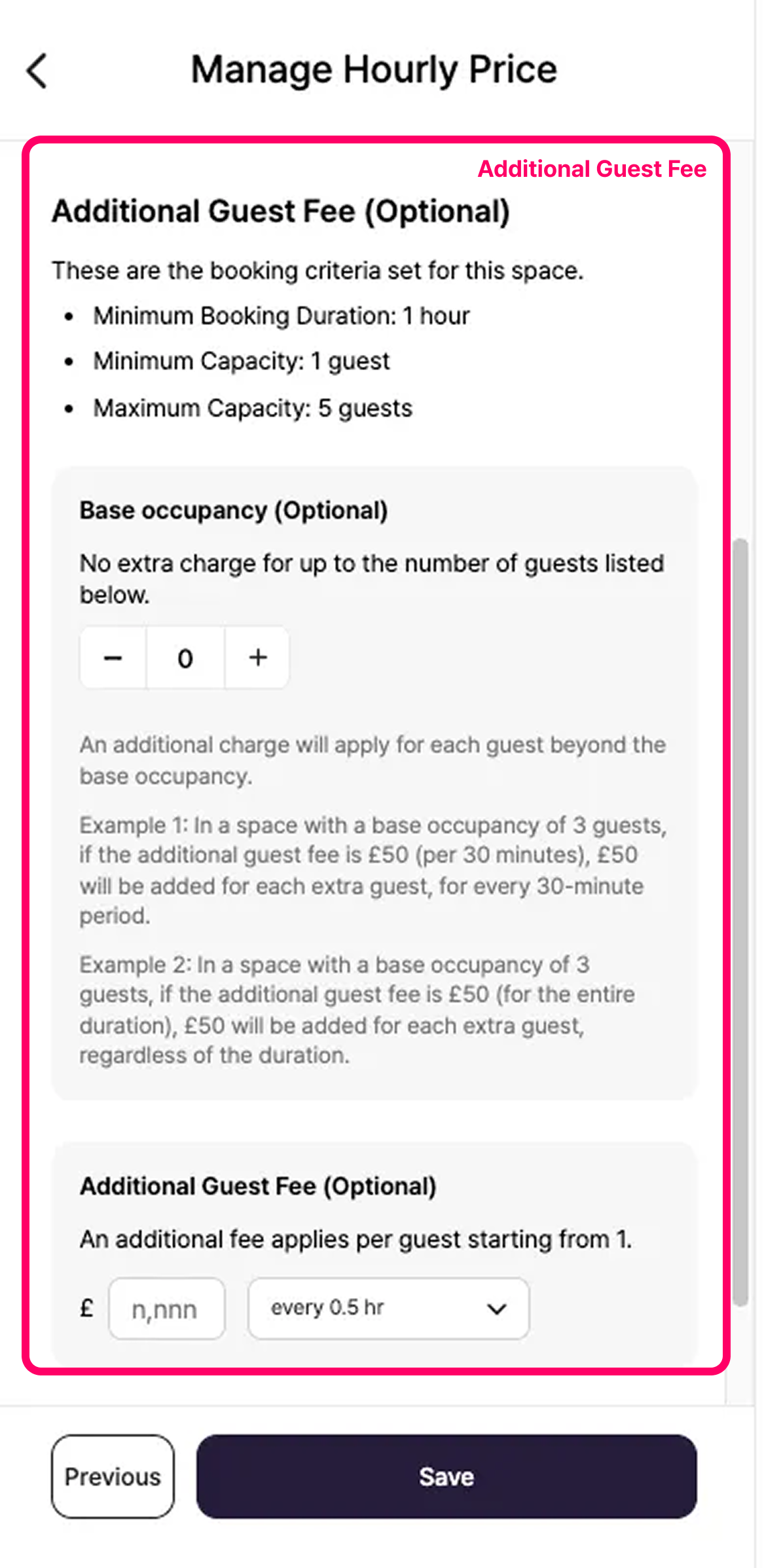
- Additional Guest Fee: You can set an extra fee per guest, either for every 30 minutes or for the total hire time.
3) Setting up Packages
When you set a package rate, guests can book your space in N-hour packages.
To set up packages, select [Package] as the calendar's price unit, then click [Manage Package].


📌 How to set up
- Package Hours: You can set package hours separately from your operating hours, up to a 12-hour maximum.
Example: You can create a package from 9:00 AM to midnight, even if your standard operating hours are 9:00 AM to 6:00 PM.
- Overnight Packages: To create a package that extends into the next day, your space must operate 24 hours a day, and the following day cannot be a day off.
Example: A package can run from 10:00 PM on Monday until 10:00 AM on Tuesday, provided that Monday's operating hours are 24/7 and Tuesday is not a rest day.
- Additional Guest Fee: You can set an additional fee per guest for the entire package duration.
'HOST FAQ' 카테고리의 다른 글
| How to List a Space (0) | 2025.08.19 |
|---|---|
| Host SpaceCloud Refund Policy Guide (0) | 2025.08.19 |
| Host Booking Management Guide (0) | 2025.08.19 |
| Host Inbox Guide (0) | 2025.08.19 |
| Host Payout Guide (0) | 2025.08.19 |