
Hello,
This is the SpaceCloud Support Team.
Once your space review has been approved, you’ll be able to add Additional Information.
By adding just a little more information, you can increase guest trust and improve your chances of receiving bookings.
Please follow the steps below and fill in the details one by one. 😊
1. How to Update Additional Information
1) Please log in to your host account.
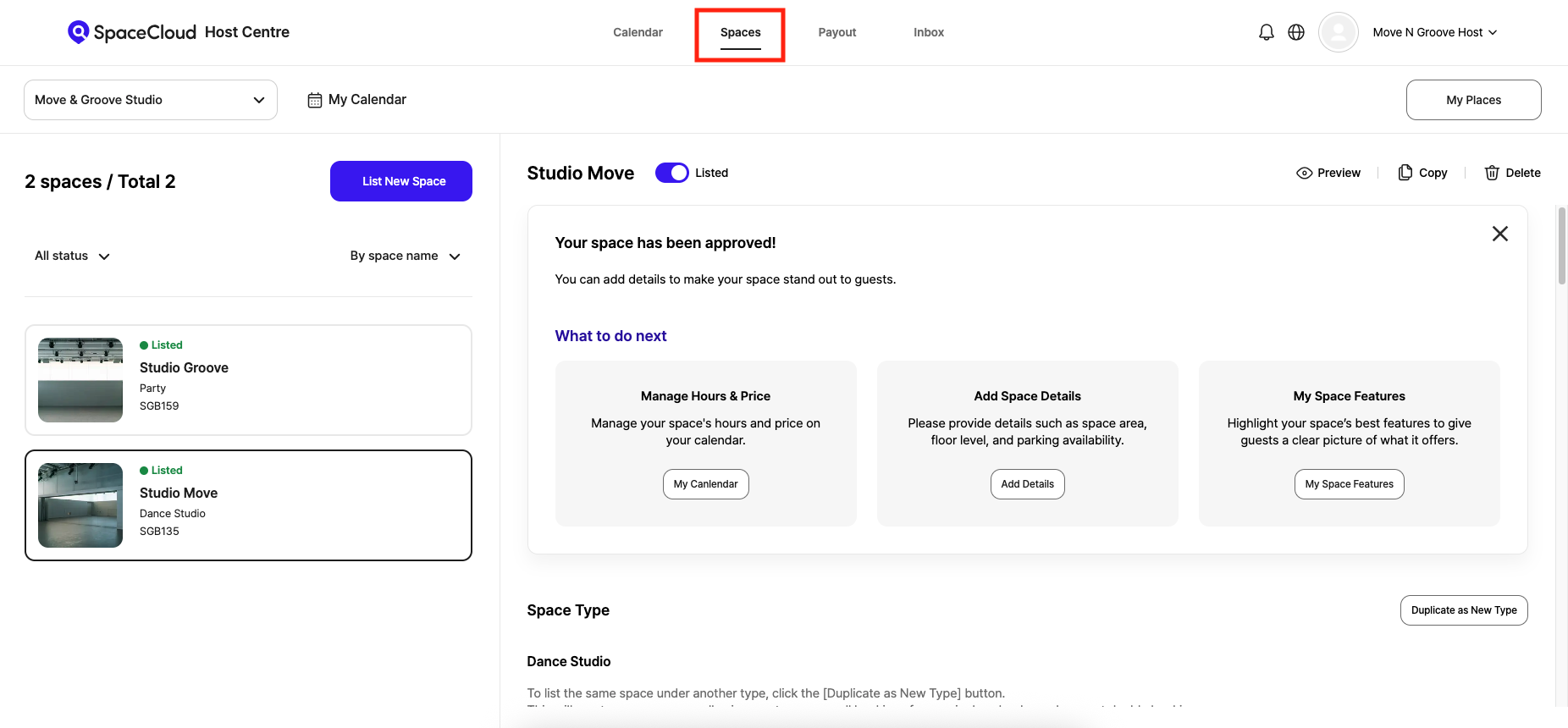
2) Click the [Spaces] menu at the top of the Host Centre page.
3) From the list of spaces on the left, select the space you’d like to add information to.
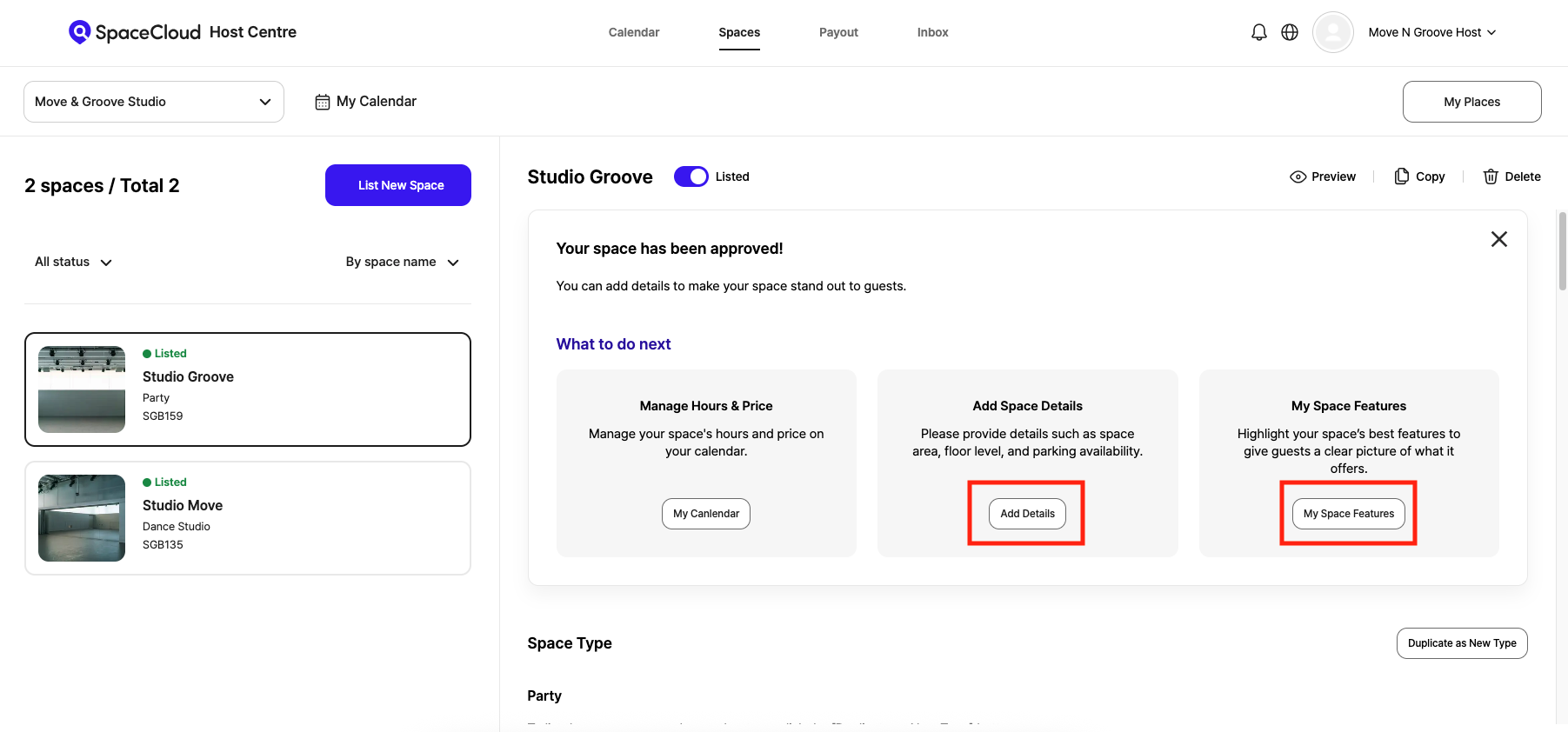
4) Click [Add Details] or [My Space Features], or Scroll to the bottom of the page to update:
👉 Space Additional Information
👉 My Space Features
Click the [Edit] button on the right of each section to freely edit and update the information for your space.
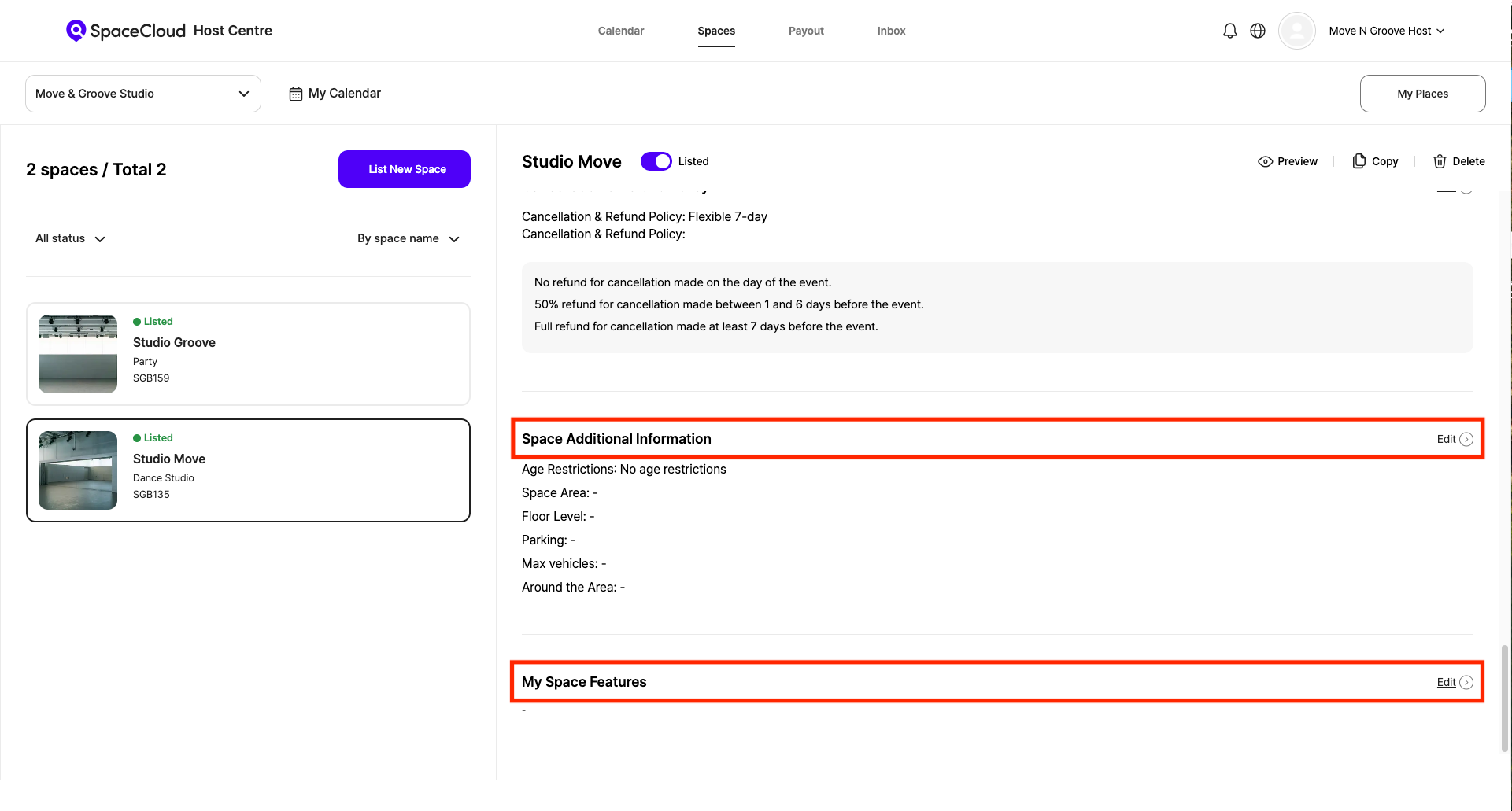
2. Space Additional Information
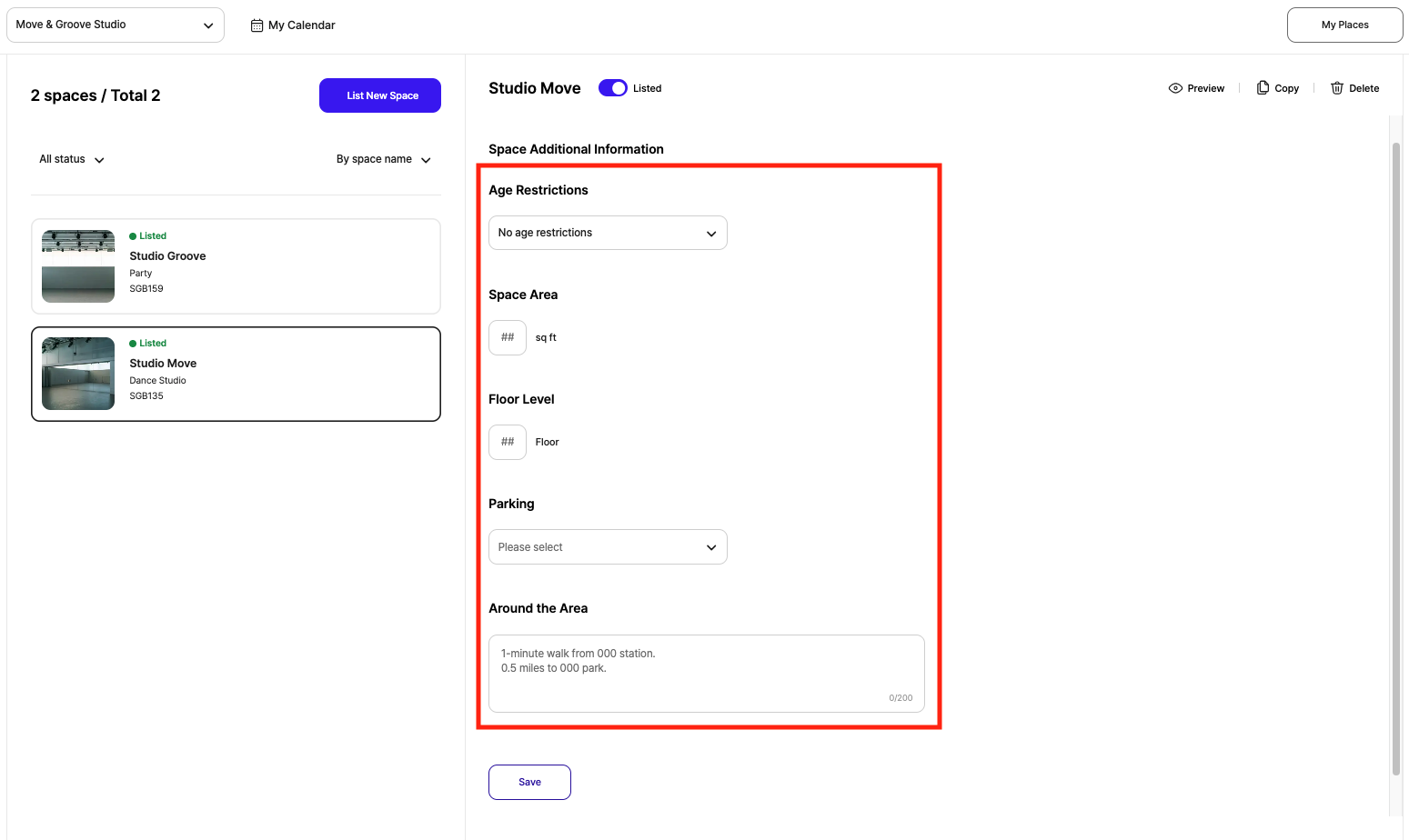
In this section, you can provide detailed basic information about your space and its surrounding area—things guests are most likely to be curious about.
By sharing clear details about your space and its surroundings, you can answer common guest questions upfront, reduce enquiries, and help guests decide more easily.
Examples of information you can include:
Age Restrictions: Whether there are any age limits
Space Area: Size of the space
Floor Level: Floor information
Parking: Availability of parking
Max Vehicles: Maximum number of vehicles that can be parked
Around the Area: Nearby surroundings and local amenities
3. My Space Features
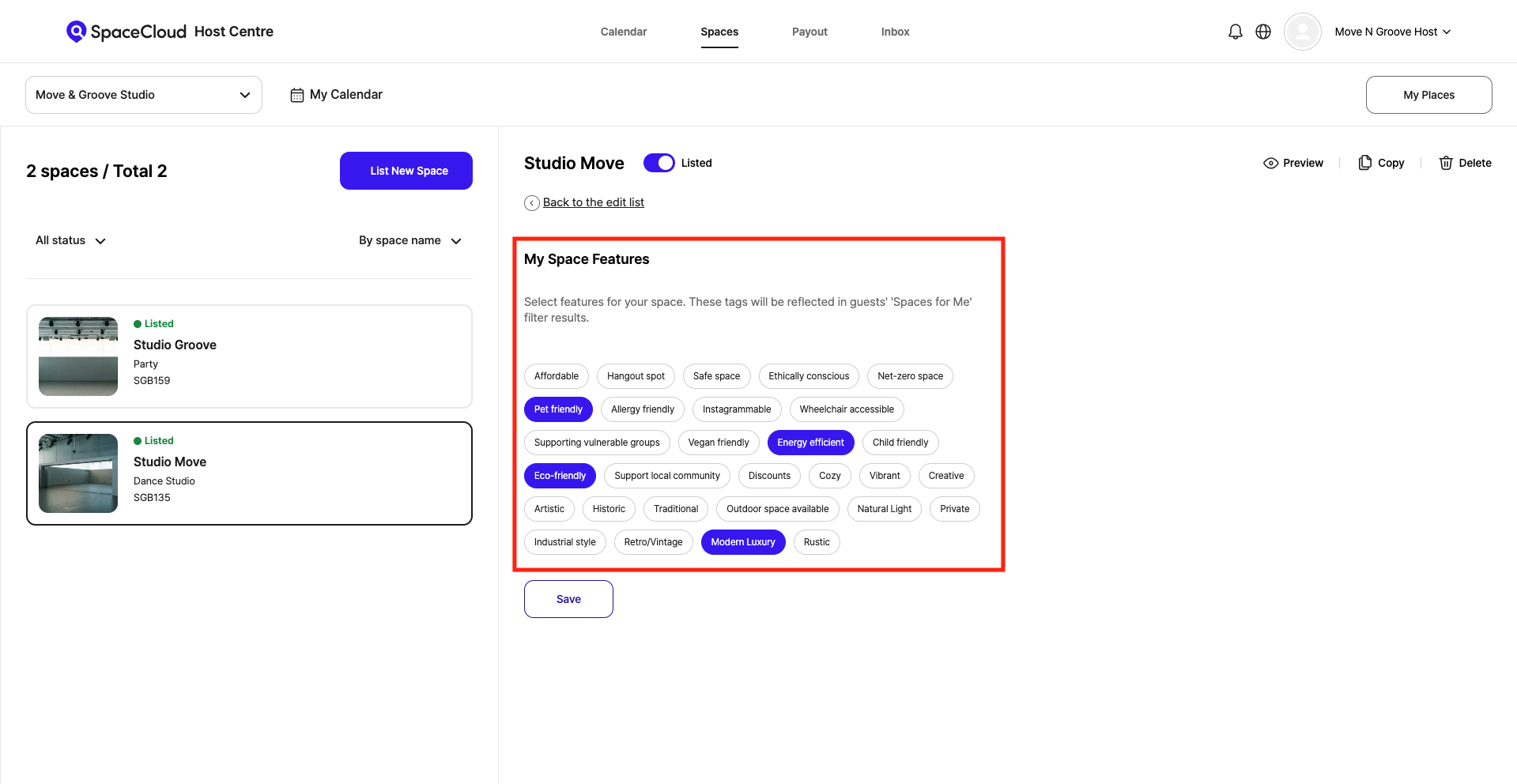
Here, you can select feature tags that best represent the atmosphere, character, and value of your space.
Please select all tags that best describe your space.
For example:
Atmosphere: Cozy, Vibrant, Creative, Artistic
Space Style: Modern Luxury, Retro/Vintage, Industrial style
Usage Environment: Pet friendly, Wheelchair accessible, Child friendly
Value Focus: Eco-friendly, Energy efficient, Support local community
💡 The tags you choose will be reflected in guests’ ‘Spaces for Me’ filter search results. Well-chosen tags help your space appear more accurately to guests searching for the right place.
4. Review your information
Once you’ve saved your entries, you can immediately check on the Spaces page to see whether the additional information has been updated correctly.
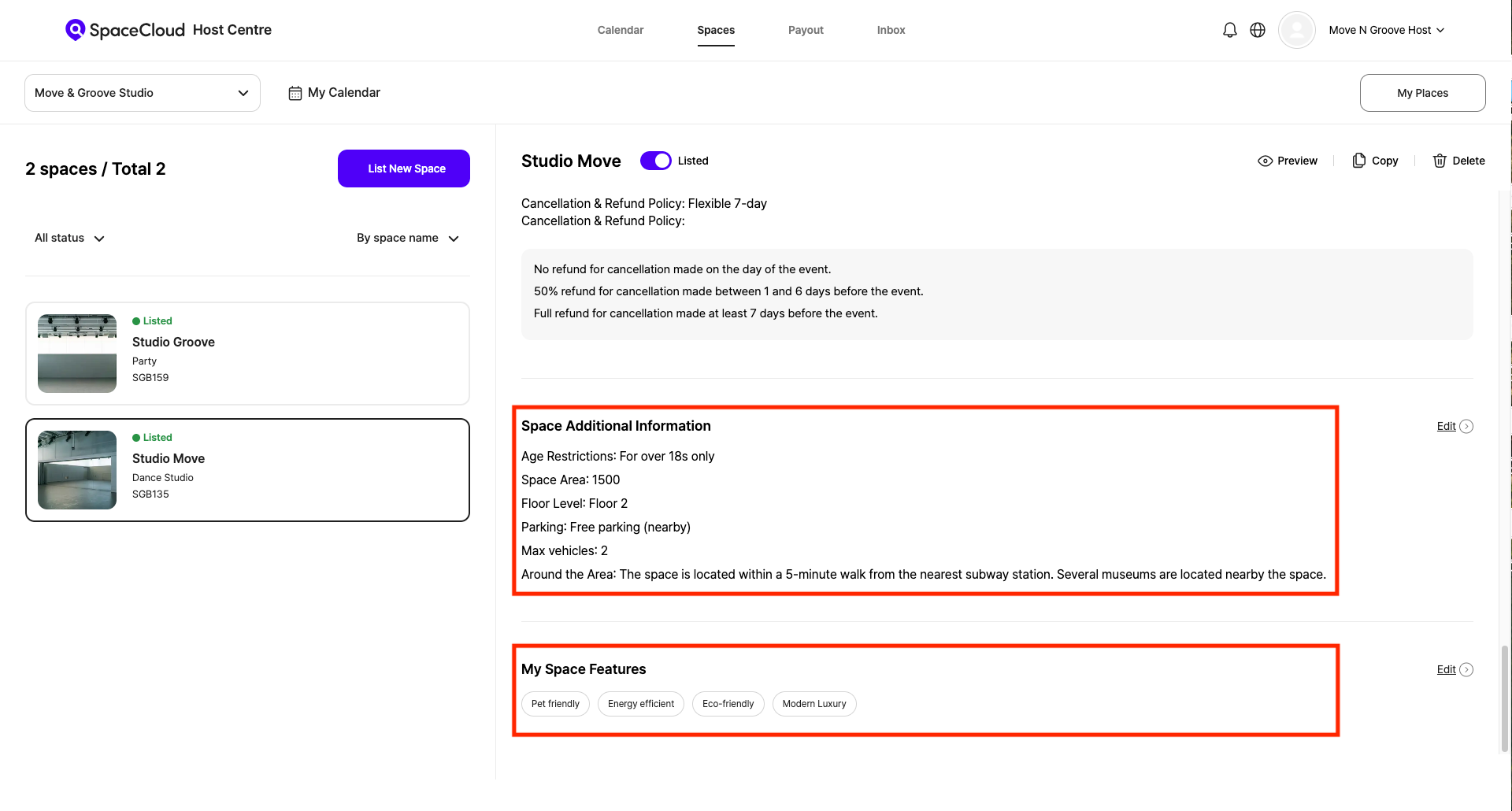
📌 The information you provide will appear on the space detail page, so please make sure it’s clear and easy for guests to understand.
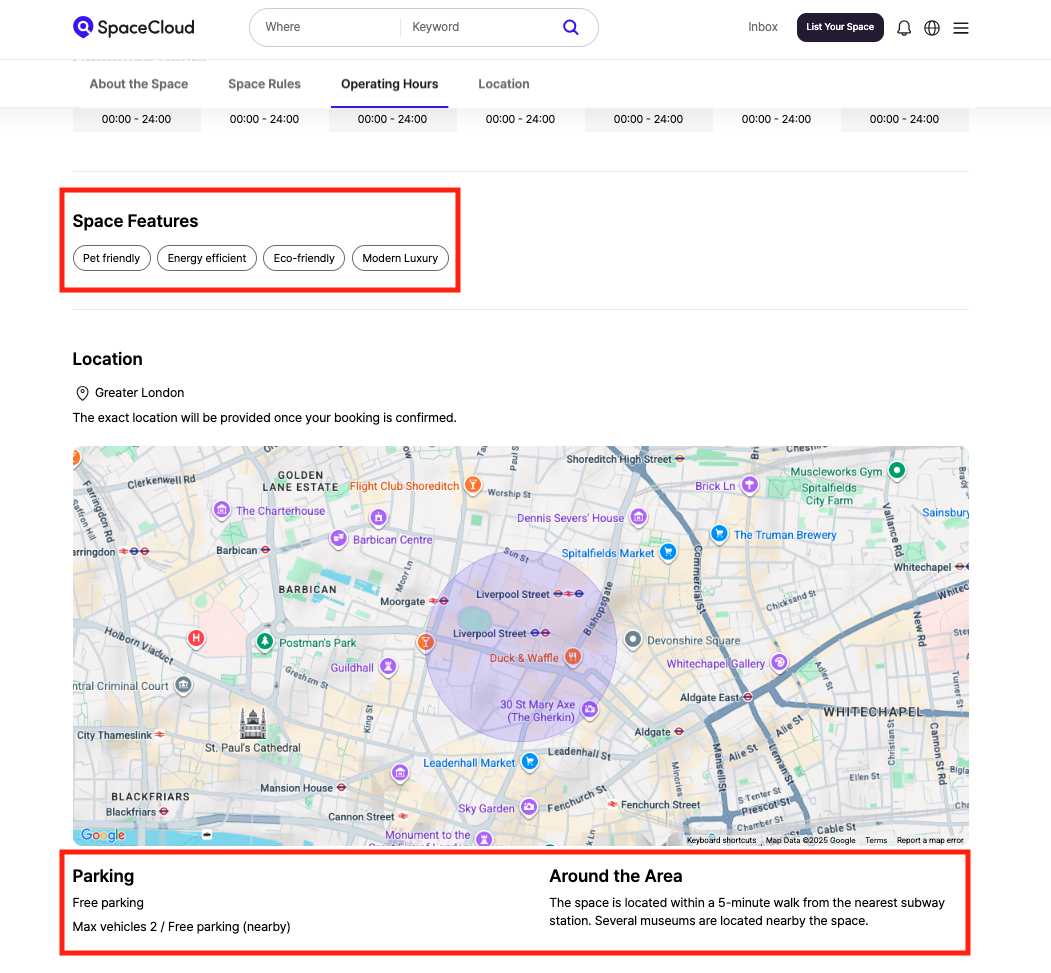
Even adding just one small piece of information can make your space feel more trustworthy to guests—and lead to more booking opportunities for you ✨
If you have any further questions or need assistance, please feel free to contact us at any time. 😊
Space for Everyone,
Team SpaceCloud
'HOST FAQ' 카테고리의 다른 글
| SpaceCloud Payout Information Guide (0) | 2026.03.13 |
|---|---|
| How to Boost Your Visibility: A Naming Guide (0) | 2026.01.14 |
| How to Set Package Bookings (0) | 2025.09.16 |
| SpaceCloud Invoice Policy (0) | 2025.09.16 |
| How to Set Special Dates and Prices (0) | 2025.09.16 |